> For the complete documentation index, see [llms.txt](https://docs.twosense.ai/llms.txt). Markdown versions of documentation pages are available by appending `.md` to page URLs; this page is available as [Markdown](https://docs.twosense.ai/h2fa/guides/microsoft-teams.md).
# Microsoft Teams Deployment
This guide outlines the steps required to set up the Twosense bot within your Microsoft Teams environment. The process includes creating a custom app, uploading the bot, configuring permissions, and installing the bot into a Team.
{% hint style="warning" %}
These changes can take anywhere between a few minutes and up to 24 hours to take effect. This is a limitation of the Microsoft Teams product.
{% endhint %}
## Allow custom apps
1. Navigate to [Microsoft Teams Manage Apps](https://admin.teams.microsoft.com/policies/manage-apps)
2. Click on **Teams apps**, then select **Setup policies**.
3. You will see a list of policies applied to your users. For detailed precedence rules, refer to [Microsoft's policy precedence documentation](https://learn.microsoft.com/en-us/microsoftteams/assign-policies-users-and-groups#precedence-rules).
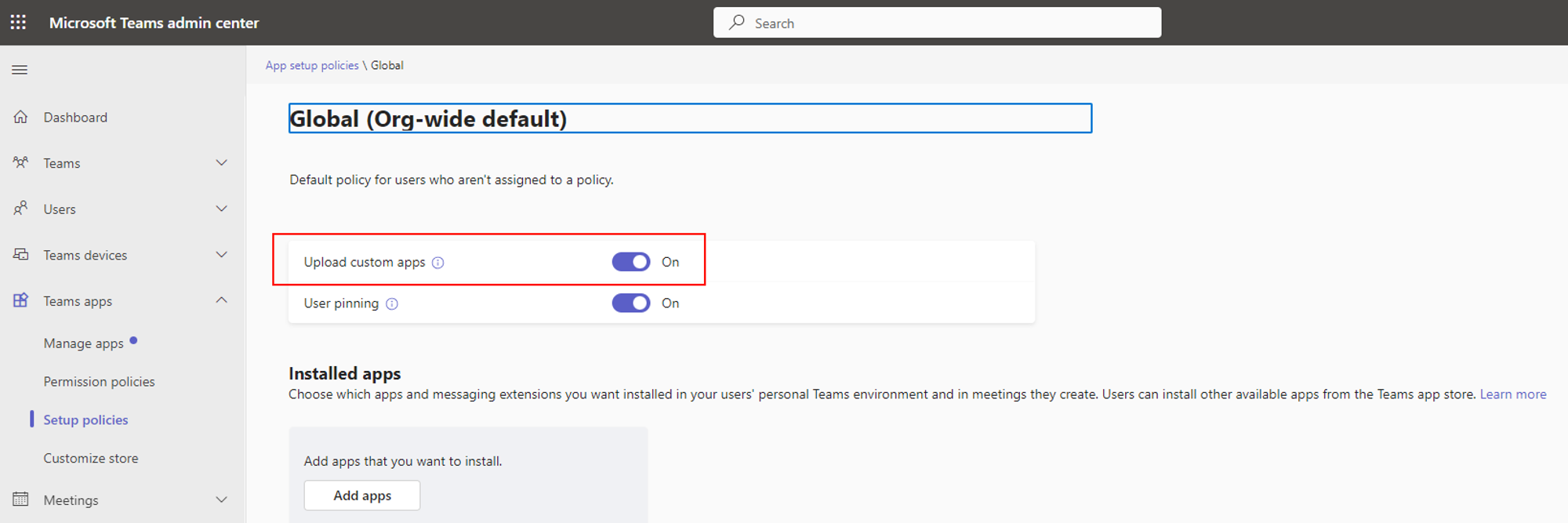
4. Ensure that the **Allow custom apps** option is enabled for users who will use the Twosense MFA bot. For example, if you only have the **Global policy** that applies to all users, it should look like this:
## Upload Twosense Bot to Teams
1. Navigate to [Microsoft Teams Manage Apps](https://admin.teams.microsoft.com/policies/manage-apps)
2. Click on **Teams apps**, then select **Manage Apps**
3. Click **Actions** in the top-right corner and choose **Upload new app**.
4. Click **Upload** and select the file `TwosenseMsTeamsBot-x.y.z.zip` provided by your Twosense Account Manager.
## Edit app permissions
1. Navigate to [Microsoft Teams Manage Apps](https://admin.teams.microsoft.com/policies/manage-apps)
2. Click on **Teams apps**, then select **Manage Apps**.
3. Search for **Twosense MFA** and click on the app name.
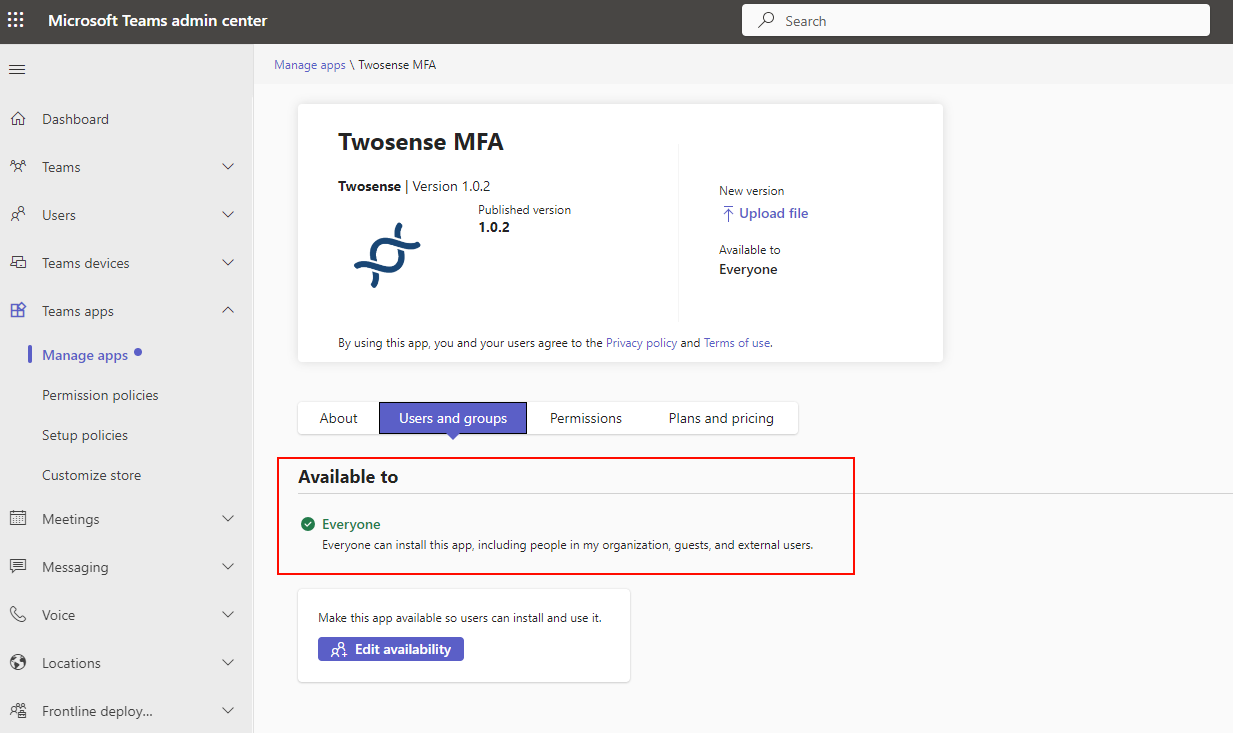
4. Go to **Users and Groups**. If you can't find this section, refer to [Microsoft’s app-centric management guide](https://learn.microsoft.com/en-us/microsoftteams/app-centric-management).
5. Click **Edit availability** and choose one of the following options:
* **Everyone**: All users in your organization can use the app.
* **Specific users or groups**: Ensure all users who will approve requests are listed.
## Add Twosense Bot to a Team
1. Navigate to [Microsoft Teams Manage Apps](https://admin.teams.microsoft.com/policies/manage-apps)
2. Click on **Teams apps**, then select **Manage Apps**.
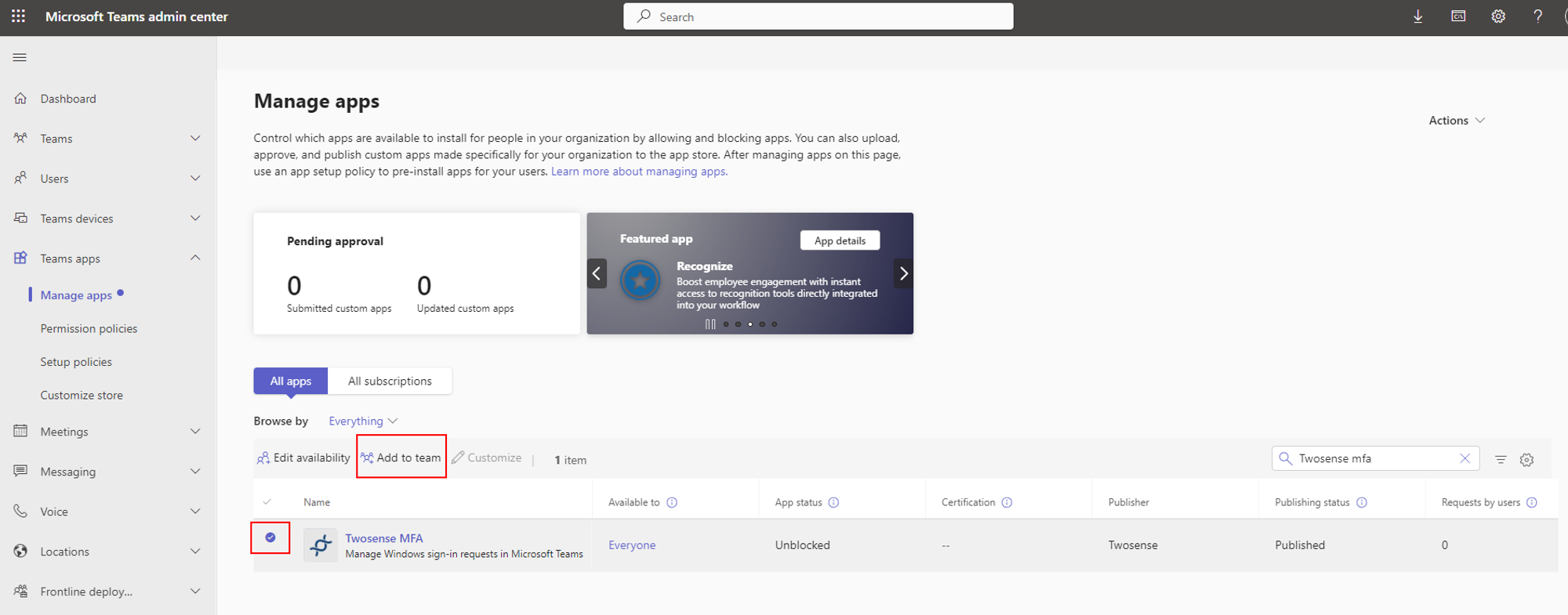
3. Search for **Twosense MFA** and click on the checkbox to the left of the app name.
4. Click on **Add to Team**.
5. Search for the team where you want to install the bot and click **Apply**
If you encounter any issues, please contact .